
Programming Phone Keys (BLF, Speed Dial, Pickup and More)
When you add a desk phone under Voice → Phones, you can also decide what each programmable key on the phone does — a second line, a busy lamp for a colleague, a speed dial, call pickup and more. The settings are pushed to the phone automatically, so you never touch the phone's own menus.
Last reviewed: October 2026
Which phones does this work for?
Any phone added under Voice → Phones — Alcatel-Lucent, Cisco, Fanvil, FlyingVoice, Grandstream, Panasonic, Polycom, Yealink and Yeastar models. The portal lists every supported model when you choose the manufacturer.
Step 1: choose which numbers the phone uses (Accounts)
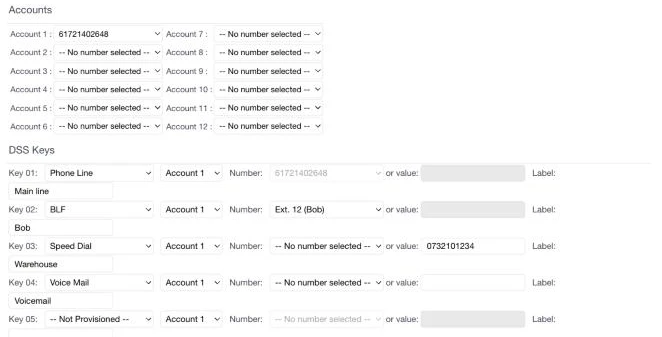
In the Accounts section, pick a number or extension for Account 1. Add more under Account 2, 3 and so on if the phone should handle several numbers. Each account is a separate line the phone can make and receive calls on.
Step 2: set up each key (DSS Keys)
Below the accounts is the DSS Keys section, with one row per key (Key 01, Key 02 and so on). For each key choose the type, the account it belongs to, then either pick a Number from the list or type one under or value, and add a Label to show on the phone's screen.
| Key type | What it does |
|---|---|
| Phone Line | Another line appearance for one of the phone's accounts |
| BLF | Lights up when a colleague's line is busy or ringing. Press it to call them, or to pick up their ringing call |
| Speed Dial | Calls a saved number with one press |
| Mailbox Monitoring | Lights up when a voicemail box has new messages |
| Voice Mail | Opens your voicemail |
| Pickup / Group Pickup | Answers a call ringing on another phone, or anywhere in your pickup group |
| Call Park | Parks the current call so someone else can pick it up |
| Intercom | Calls a colleague's phone, which answers on speaker |
| Conference / Transfer / Hold / Forward | One-press call controls |
| Do not Disturb | Turns DND on and off |
| Start Manual Recording / Pause Recording / Resume Recording | Controls recording on the current call |
| Hot Desk Login / Hot Desk Logout | Signs a user in or out of a shared phone |
| Multicast Paging | Broadcasts an announcement to a group of phones |
| DTMF | Sends a set of keypad digits during a call |
Step 3: save and push it to the phone
Click Add Phone (or save the phone's settings if you're editing it). To apply changes straight away, tick Send a reboot request to the handset to force a provisioning update. Otherwise the phone picks them up at its next scheduled check, which you can set with Reboot request to phone (never, daily, weekly or monthly at 2 am).
Other handy settings on the same page
- Transport — leave on TLS (recommended).
- Web Admin Password / Web User Password — set your own; they default to admin and user if left blank.
- Call Waiting and Call Waiting Tones — whether a second call can come in while you're on one.
- DSS Key Transfer Mode — what the phone does when you press a BLF key during a call: blind transfer, attended transfer, or a new call.
- Remote Phonebook — shows your internal extensions and external contacts in the phone's directory. Tip: a line or extension with "Virtual" in its name won't appear in the phonebook.
- Hot Desk Facility — lets different people log in to the same phone.
Related Guides
Still need help?
Our Australian support team is available to assist you.