
Browser softphone · No download
Web Phone: Your Business Phone in Your Browser
Make and take calls on your Click2Call number from any Mac or Windows computer. The Web Phone is a browser softphone: open it in Chrome, Edge, Safari or Firefox, sign in, and your computer becomes your business phone. There is nothing to download and no extra charge.
Already a customer? Sign in with your line's SIP username and password from Line Manager, or scan the line's QR code.
In short
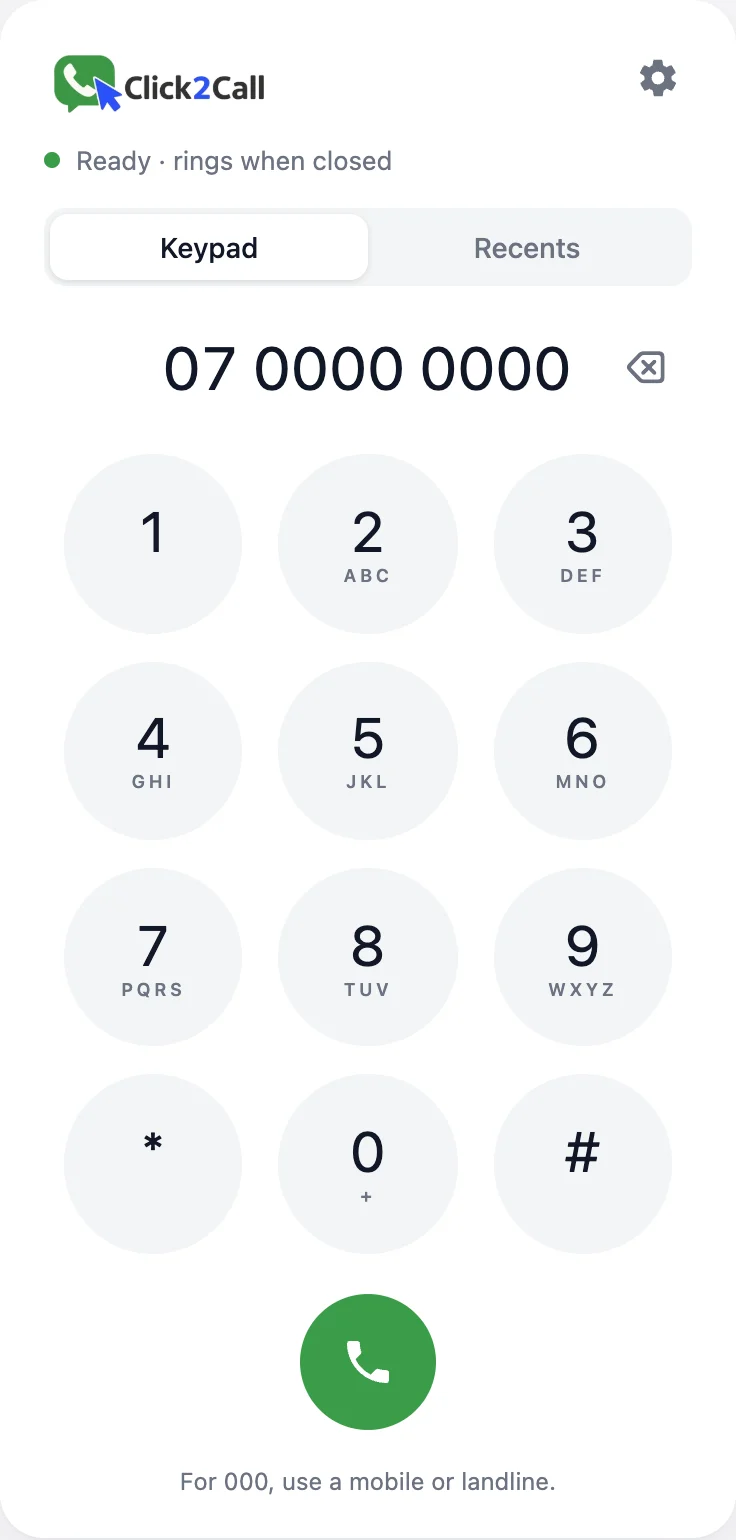
The Click2Call Web Phone is a business phone that runs in your web browser. It makes and takes calls on your Click2Call number from any Mac or Windows computer, shows your business number when you call out, and can ring even when the app is closed. There is nothing to download and no extra charge: calls are billed the same as calls from your other phones, and incoming calls are free. Calls are encrypted from your browser to our gateway in Sydney, which connects to our Australian platform.
- ✓Any browser on a computer. Chrome, Edge, Safari or Firefox on a Mac or Windows computer. Sign in with the line's SIP login from Line Manager, or scan its QR code.
- ✓A full business phone. Keypad, recents, caller names, mute, hold, call waiting, and transfer straight away or after a quick word first.
- ✓Click-to-call. Click a phone number in your CRM, an email or a website to call it, in Chrome or Edge on a computer.
- ✓Not for 000. Make emergency calls from a mobile or landline.
A business phone on your computer, with nothing to install
A softphone is a phone that runs on a computer instead of a handset. Most need a download. The Web Phone is a WebRTC softphone that runs in the browser you already use, so it works the moment you sign in.
Calls from your business number on any computer
Call customers from your laptop and they see your business number, not your personal mobile. Answer the business line at your desk with a headset, at home or in the office.
Rings even when the app is closed
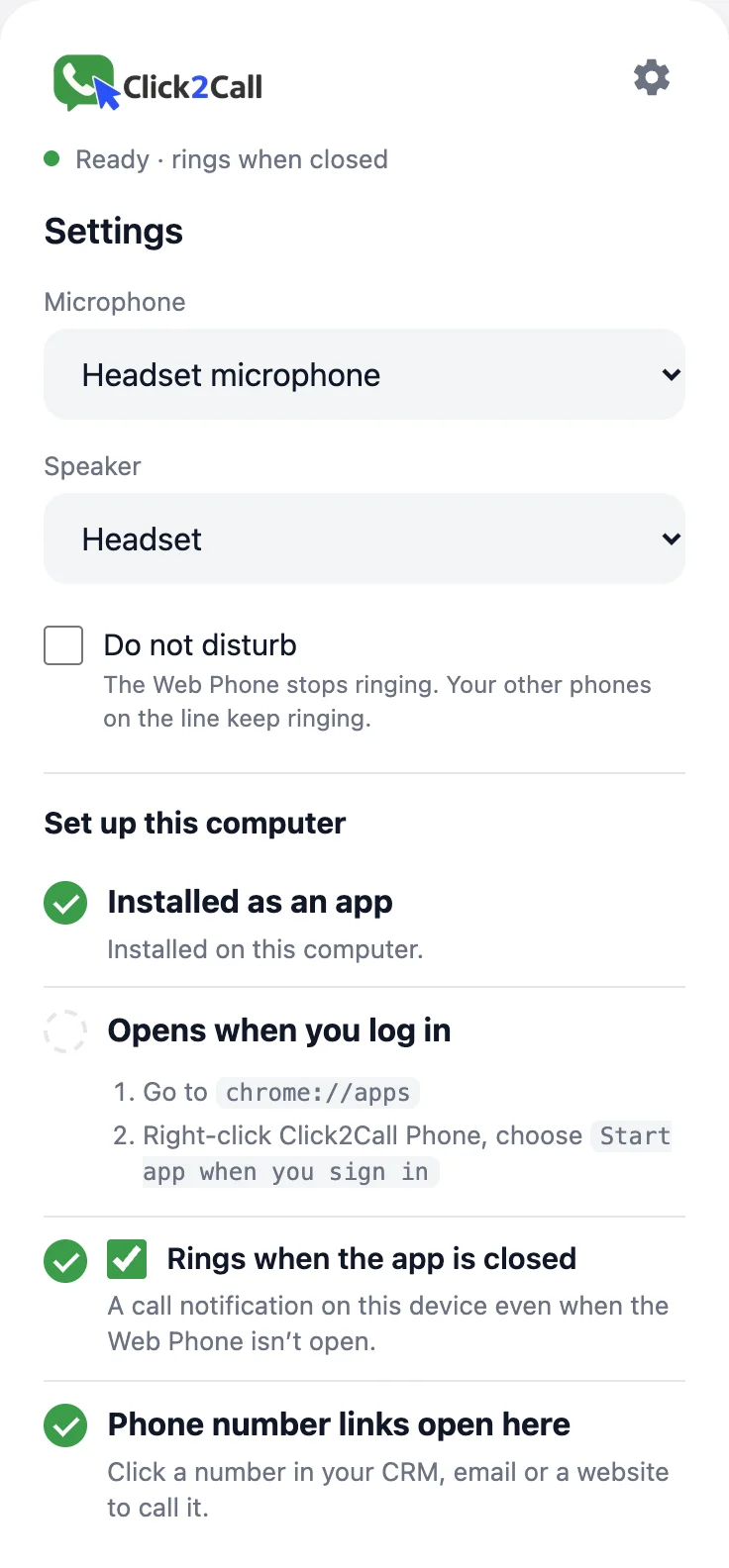
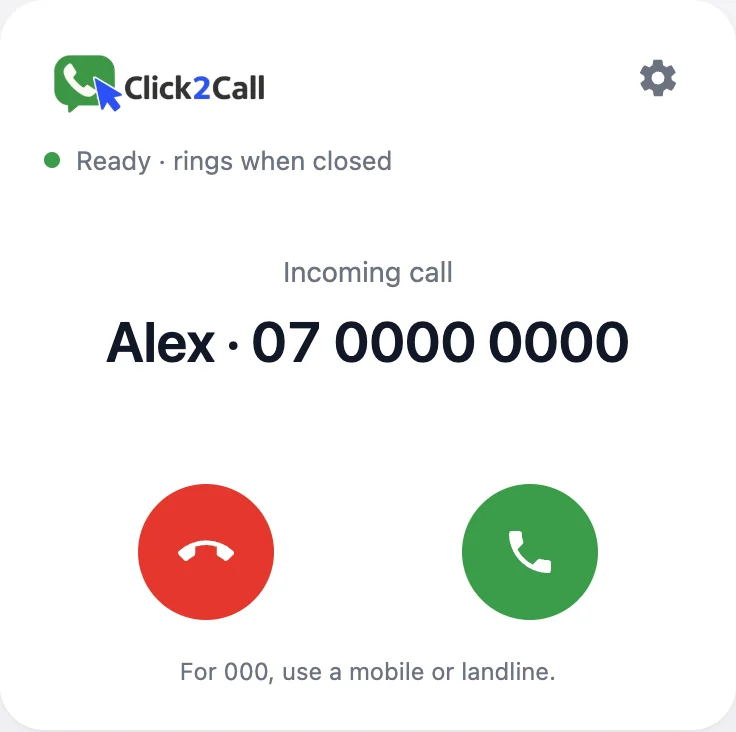
Turn on Rings when the app is closed and a call notification with Answer and Decline appears even when the Web Phone isn't open. The alert repeats every 5 seconds, like ringing. Answer on one device and the alert clears on the others; Decline sends the caller straight to voicemail.
Click any number to call it
Click a phone number in your CRM, an email or a website and the call opens in a new tab while your page stays open. The call tab closes when you hang up. Click-to-call works in Chrome and Edge on a computer.
How the Web Phone works, in three steps
- 1
Open the Web Phone
Go to phone.click2call.com.au in Chrome, Edge, Safari or Firefox. No download, no plugin.
- 2
Sign in, or scan your line's QR code
Use the line's SIP username and password from Line Manager in the portal, or click Scan QR code and hold up the QR code from Line Manager. Staff on extensions sign in with their own extension login. Not sure which password? Your portal password and your phone passwords explains the difference.
- 3
Install it and turn on ringing
Install it as an app with its own window and Dock or taskbar icon, set it to open at login, and turn on Rings when the app is closed. Settings has a simple Set up this computer checklist that walks you through it.
The Web Phone guide has each step for Chrome, Edge, Safari and Firefox.
What the Web Phone does
Everything you need to answer and make business calls from a laptop or desktop, including call waiting, hold and call transfer.
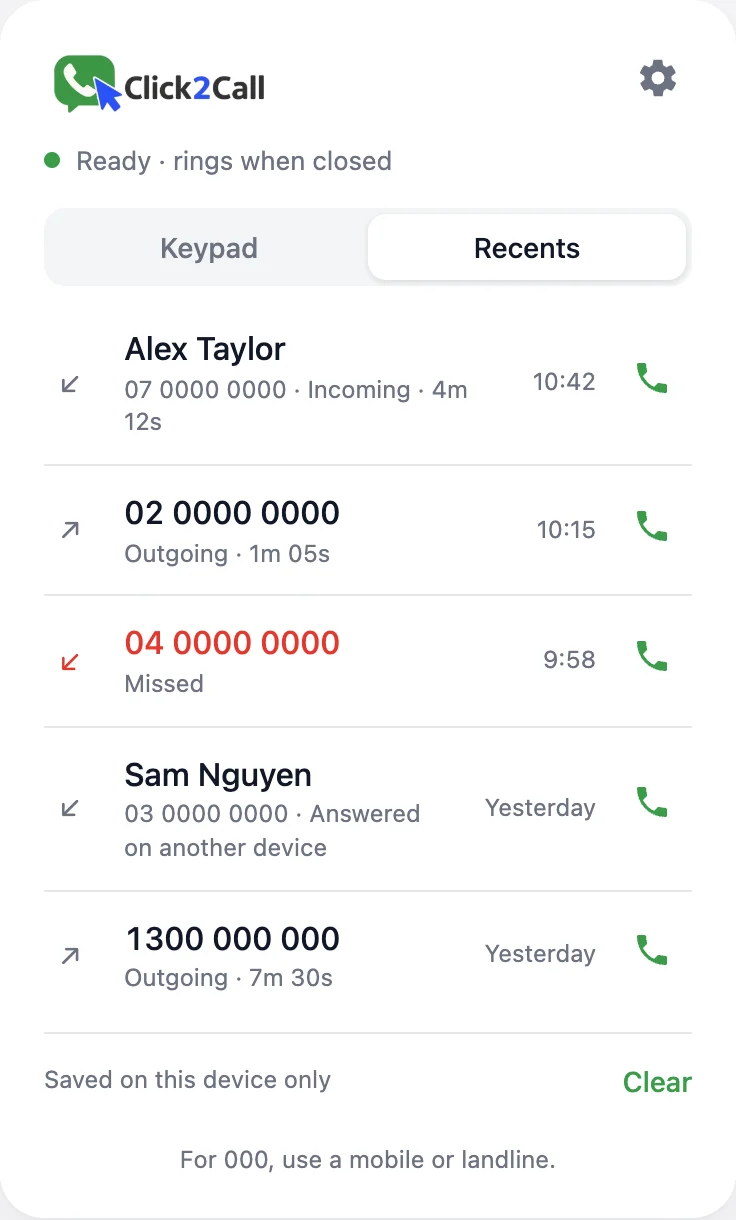
Keypad, recents and caller names
Dial from the keypad or call back from Recents with one click. Caller names come from the External Contacts in Line Manager, and the number is always shown with the name.
Hold, mute and call waiting
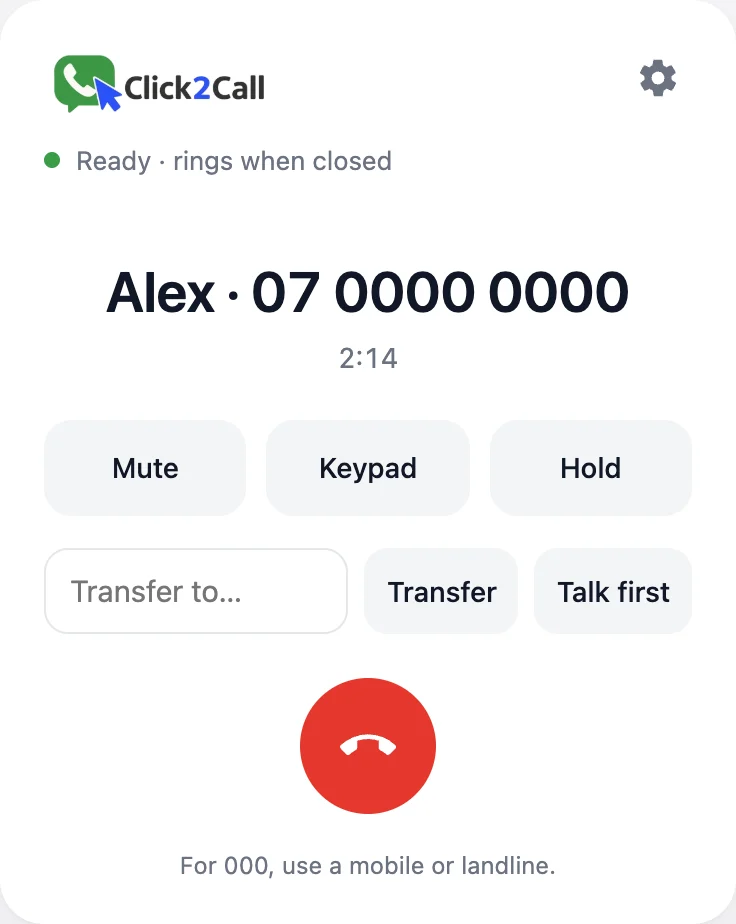
Mute, send keypad tones to menus, and put a caller on hold. Call waiting handles two calls: answer the second and swap between them.
Call transfer, blind or warm
Transfer a call straight away, or click Talk first to speak to your colleague before you hand the caller over.
Do not disturb
The Web Phone stops ringing while the line's other phones, such as a desk phone or the mobile app, keep ringing.
Headset calling
Choose your microphone and speaker, so calls go through a USB or Bluetooth headset instead of the laptop speakers. Speaker choice works in Chrome and Edge.
Installable, and keeps you signed in
Install it as an app that opens at login. Keep me signed in encrypts your password and stores it only in that browser; untick it on shared computers.
Built to be reliable
- ✓Reconnects by itself when the internet comes back or your laptop wakes up.
- ✓Keeps a call going when you switch networks, for example from Wi-Fi to a mobile hotspot.
- ✓Switches microphone if you unplug a headset, and tries a call again once by itself after a network blip.
- ✓Works on strict business networks: if a firewall blocks direct audio, it switches to a relay automatically.
- ✓Runs on two servers in separate Sydney data centres with automatic failover, monitored around the clock.
- ✓Built-in diagnostics and a self-test. Report a problem sends a report straight to Click2Call support.
Call quality depends on your internet connection. Call quality and your connection explains what to check.
Secure and private
- ✓Calls are encrypted between your browser and our gateway in Sydney, then connect to our Australian platform.
- ✓Your SIP password is never stored on our servers. We keep only an encrypted one-way fingerprint, deleted after 30 days unused or when you sign out everywhere.
- ✓No advertising or tracking scripts in the Web Phone.
Who uses a web phone
If you've wondered how to make business calls from your laptop without a desk phone, these are the common setups.
Working from home
Answer the business line on your laptop, wherever you work. There is no desk phone to carry home, and the same number rings in the office.
Calling customers from your CRM
Click the number in a customer record and the call starts, showing your business number. No retyping numbers into a phone.
Reception with a headset
Answer on a headset, put the caller on hold, and transfer them to the right person after a quick word first.
Staff on extensions
Each person signs in with their own extension login, so everyone answers and calls out on the same business phone system.
Keeping your mobile number private
Return calls from your computer and customers see the business number, so your personal mobile number stays yours.
A backup when a desk phone is out
If a desk phone fails or is left behind, open the Web Phone on any computer and keep taking calls on the same number.
On your mobile
On an iPhone (added to the home screen) or an Android phone, the Web Phone makes calls from your business number and can show a call notification. It is a notification, not a ringing screen, and the audio plays on the loudspeaker or earphones. For taking calls on a mobile, use the Click2Call Basic Edition app, or forward calls to your mobile. Your computer and your mobile can ring together.
What it costs
The Web Phone is included with your Click2Call number at no extra charge. Calls are billed exactly like calls from your other phones, and incoming calls are free. A business number is $10 a month ex GST, and a phone system user is $25 a month ex GST with 300 outbound minutes. See pricing.
Good to know
- Not for 000 emergency calls. Use a mobile or landline.
- Two calls at a time. Conference calls aren't supported.
- There is no voicemail inbox in the app. Voicemail to email still works.
- Recents are saved on each device. Your full call history is in the portal.
- Firefox can't install the Web Phone as an app. Speaker choice and click-to-call need Chrome or Edge.
Web Phone guides
Written by Royce Clark
Royce runs Click2Call from the Gold Coast, alongside bcom ICT, a business IT services company. This page describes the Click2Call Web Phone as it works today; the screenshots are the live app with example numbers.
Last reviewed November 2026.
Try the Web Phone on your own number
Start a free trial, pick a number, and make your first call from your browser.