
Connecting Cloudonix to Your Phone Number
Cloudonix is a programmable layer between the carrier and whatever answers the call. Click2Call has a built-in Cloudonix connection profile, so the routing is one dropdown — the work is the voice application at their end.
Last reviewed: September 2026
Cloudonix is a layer, not an agent
Cloudonix is programmable SIP middleware. It receives the call, runs a voice application you have written, and hands the call on — often to an AI provider such as Vapi or Retell. If all you want is one AI agent answering one number, connect that provider directly and skip the extra hop: Vapi, Retell, ElevenLabs.
At a glance
- Mandatory Click2Call field
- None — just pick the connection type
- Where Click2Call sends calls
- sip:trunk.cloudonix.com:5060;transport=tcp
- Authentication
- IP allowlist on the Cloudonix inbound trunk — add 103.212.52.19
- Number format
- +E.164, set automatically
- Code required
- Yes — a Cloudonix voice application
- Provider documentation
- Cloudonix developer resources
Connecting Cloudonix, Step by Step
Create a Cloudonix domain
In the Cloudonix portal, create the domain this number belongs to. Each domain gets its own inbound SIP hostname, which appears in the information box at the top of the Inbound Trunks section — it looks like <uuid>.sip.cloudonix.net.
You need a separate Cloudonix SIP trunk for each domain, so plan the domain layout before you start wiring numbers up.
Configure the inbound trunk
In Inbound Trunks, set up the trunk that will receive calls from Click2Call and allowlist the Click2Call signalling addresses.
Click2Call cannot present a username and password on an outbound INVITE, so the provider has to trust us by IP allowlist. Allowlist 103.212.52.19 — that is the address our switch sends INVITEs from. If a provider will only accept authenticated INVITEs, the connection has to run the other way round — the provider registers to Click2Call as the number, which is the generic method in connecting an AI voice agent.
Write the voice application
A Cloudonix voice application is a script that decides what happens to each call. To hand the call to an AI agent platform, use the <Dial><Service> verb.
Until an application is attached to the domain, calls arrive and go nowhere.
Create the profile in Click2Call
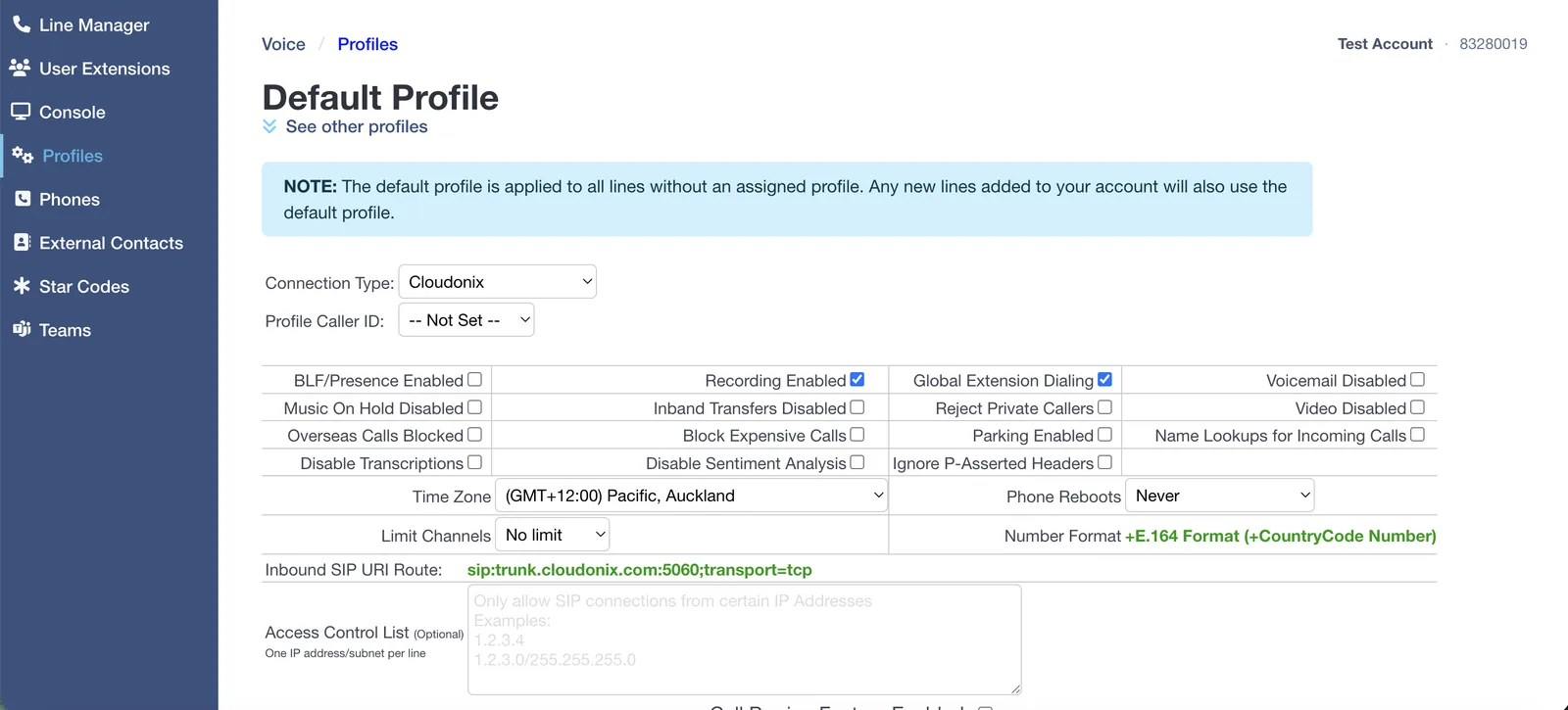
In the Click2Call portal open Voice → Profiles and set Connection Type to Cloudonix.
There are no extra fields. The Inbound SIP URI Route line already shows sip:trunk.cloudonix.com:5060;transport=tcp, and the dialled number arrives in +E.164 format for your Cloudonix application to match on.
Assign your number, then check the time zone
Open Voice → Line Manager and set the Profile column for your number to the profile you just created.
The Default profile applies to every line with no profile assigned, and new numbers land on it automatically — a number left on Default will ignore everything you just configured. While you are in the profile, set the Time Zone to where the business operates: business hours, after-hours routing and queue schedules all read it.
Test the call
Ring the number from a mobile and watch the Cloudonix call logs. You should see the call arrive and your voice application run.
Troubleshooting
The provider replies 407 Proxy Authentication Required
The provider is challenging our INVITE for a username and password, which means our signalling address is not on their allowlist. Click2Call cannot answer that challenge on an outbound call, so the fix is always at the provider end — allowlist 103.212.52.19 rather than issuing credentials. While this is happening, callers hear “the number you have called is not available from this service”.
The call arrives at Cloudonix and stops
No voice application is attached to the domain, or the application is not matching the dialled number. Remember the number arrives in +E.164 format, with the leading plus.
Cloudonix rejects the call
The inbound trunk is not accepting traffic from the address Click2Call signals from. Ask support for the current addresses and allowlist them.
Calls go to Click2Call voicemail instead
The number is still on the Default profile rather than the provider profile, so the call never leaves for the provider at all. Check the Profile column in Line Manager.
You are not sure you need Cloudonix at all
If one agent answers one number, you probably do not. Connect the AI provider directly with its own Click2Call profile and remove a hop from the call path.
Frequently Asked Questions
What is Cloudonix for?
Programmable call logic between the carrier and whatever handles the call. It earns its place when routing decisions happen before the agent, when you want to swap AI providers without touching carrier config, or when several services share one number.
Do I need it for a single AI agent?
No. Connect the provider directly — Vapi, Retell, ElevenLabs and the rest all have their own built-in profile.
Are calls still recorded and transcribed?
Yes, provided Recording Enabled is ticked on the profile. Recording, transcription, summaries and sentiment all work as normal on the Click2Call side, stored in Australia and New Zealand. See AI voice tools.
Can I use my existing business number?
Yes — port it across first, then assign it to the profile. Local and mobile numbers typically port in 5 to 10 business days.
Related Guides
Still need help?
Email our Australian support team with your account number and what you’re seeing. We support the Click2Call side of this connection; questions about the other product go to its vendor.