
Using the Live Call Dashboard
The Call Activity Dashboard shows live calls, callers waiting in queues and team availability in one place, updating continuously. It answers the question every manager asks mid-morning: is the phone busy right now, and is anyone waiting? This guide covers opening it, reading each panel, and putting it on a screen the team can see.
Last reviewed: August 2026
Using the Live Call Dashboard, Step by Step
Open the dashboard
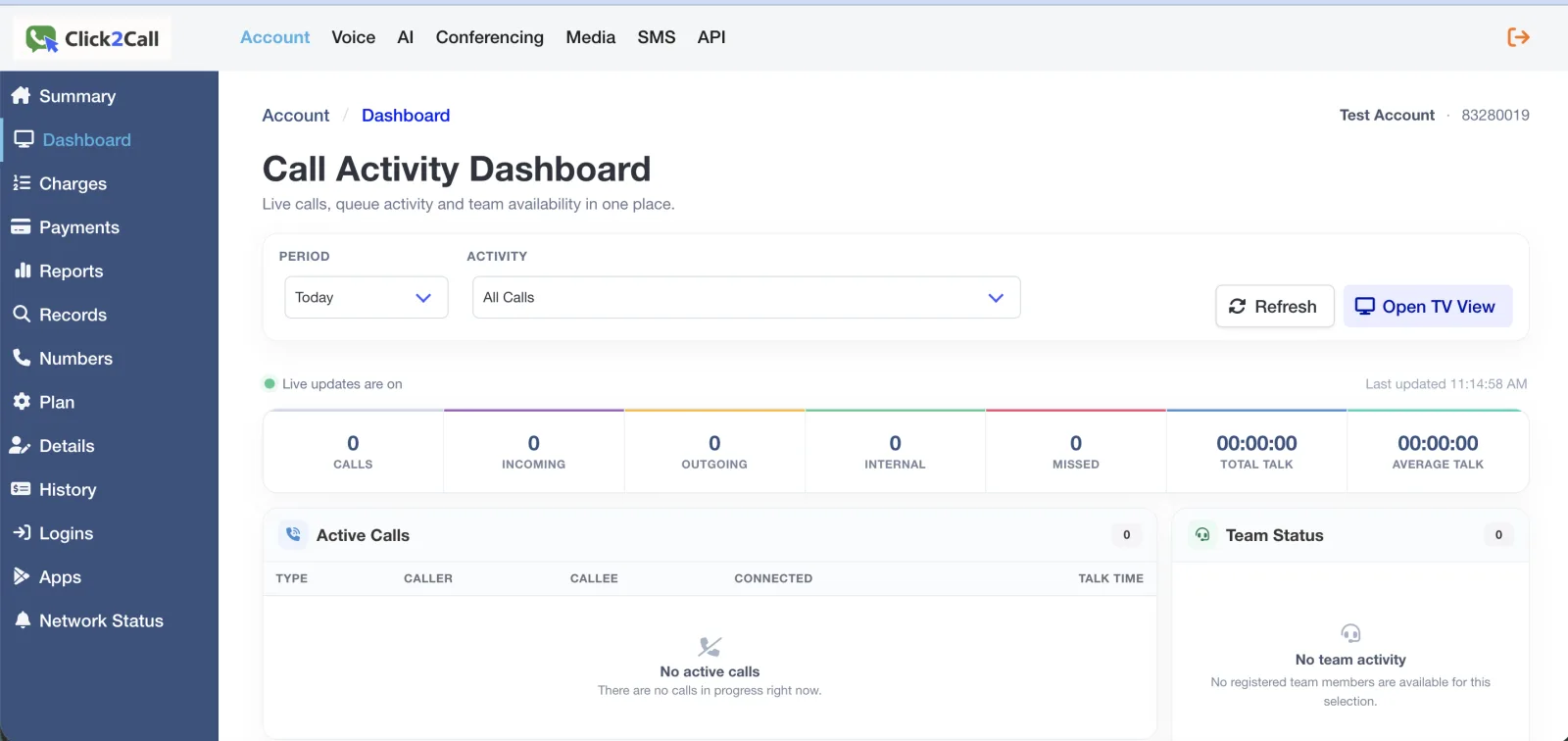
Log in to the portal, open the Account tab and choose Dashboard. The Call Activity Dashboard opens with live calls, queue activity and team availability on one screen.
Set the period and filter
Use Period to choose what the counters cover — Today is the usual choice — and Activity to narrow from All Calls to a single call type.
A Live updates are on indicator and a last-updated time sit just below, with a Refresh control if you want to force an update.
Read the counters
The row across the top is the summary for your selected period:
- Calls — the total, with Incoming, Outgoing and Internal broken out beside it.
- Missed — calls that arrived and were not answered.
- Total Talk and Average Talk — how much time was spent on calls, and the typical call length.
Missed is the number worth watching. Most businesses have never measured it, and seeing it for the first time is usually what prompts a change to the call flow.
Watch calls in progress
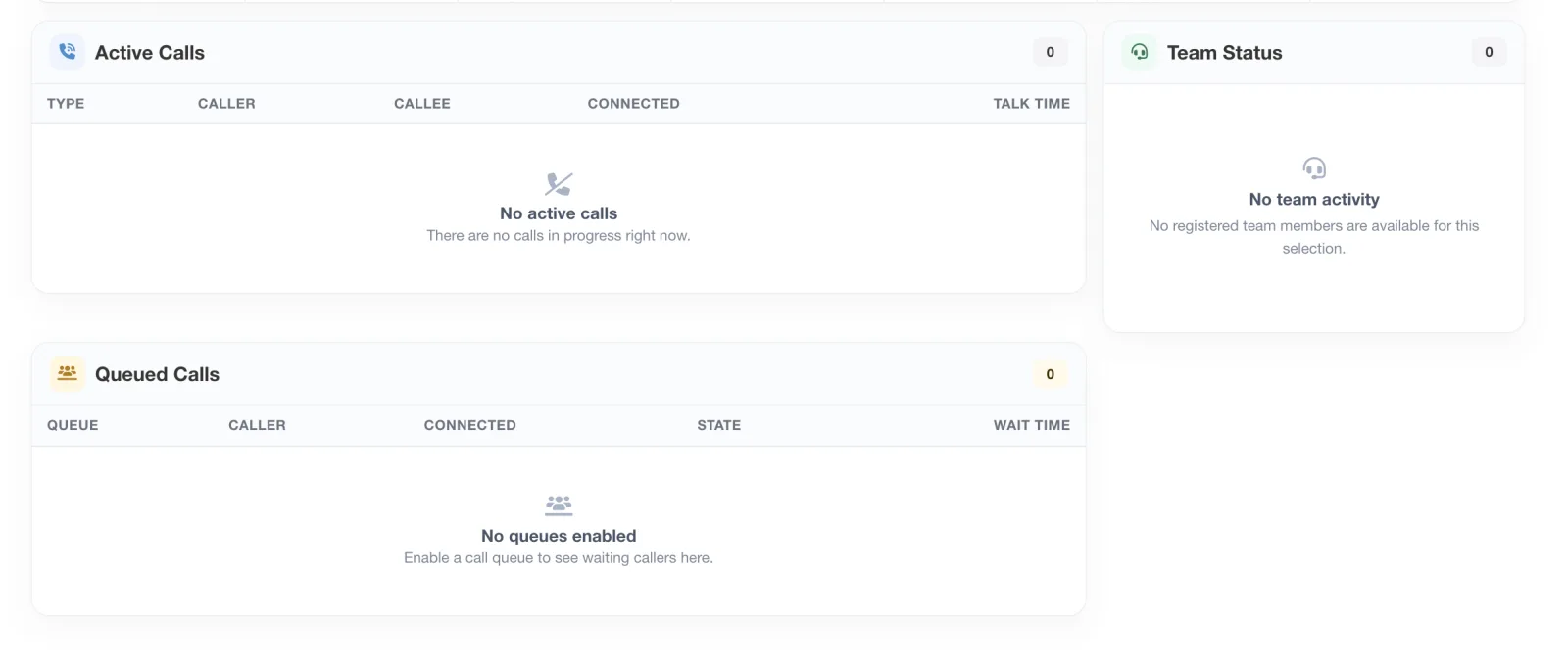
Active Calls lists every call underway: its type, the caller, the callee, when it connected and how long it has been running. Beside it, Team Status shows who is available.
Watch callers waiting
Queued Calls shows anyone currently holding — which queue, when they connected, the state of the call, and their wait time.
This panel reads No queues enabled until at least one line has a call queue switched on. See Setting Up a Call Queue.
Put it on a screen
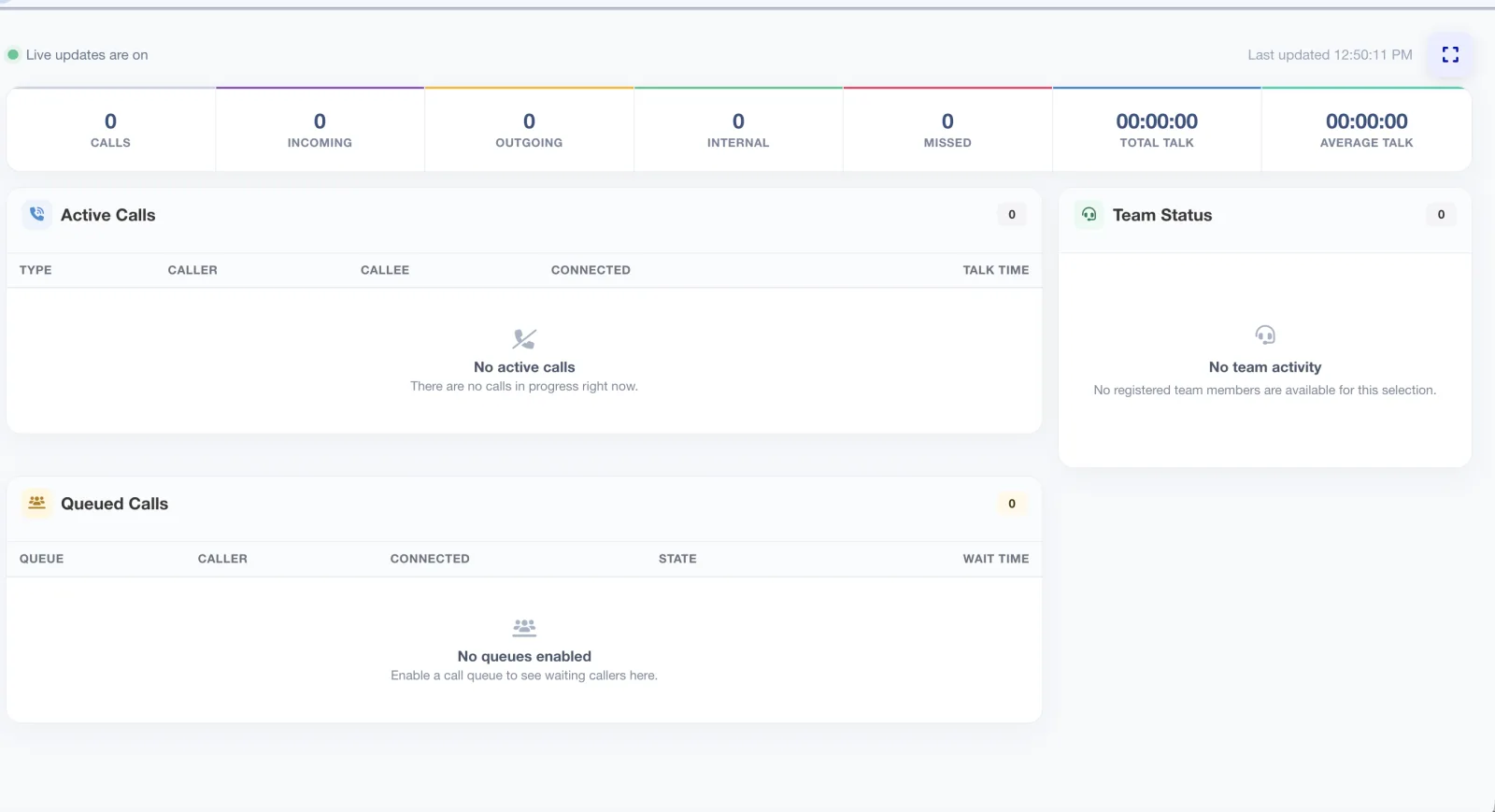
Select Open TV View for a full-screen version designed for a monitor on the office wall. Live updating continues, so the team can see a queue building without anyone opening the portal.
This works well on a spare monitor or a smart TV browser. Nothing to install.
Frequently Asked Questions
Why does the queued calls panel say “No queues enabled”?
Because no line has a call queue switched on yet — there is nothing to display. Enable a queue and the panel starts showing waiting callers. See Setting Up a Call Queue.
Why is Team Status empty?
Either no users are registered on the account yet, or their devices are not currently registered to the platform. Check that softphones or desk phones are online — see Setting Up a Softphone.
Does it update on its own?
Yes. Live updates run automatically while the dashboard is open, and the last updated time is shown. Use Refresh to force an immediate update.
Can I display it on a TV in the office?
Yes — Open TV View gives a full-screen wallboard for a wall monitor, still updating live.
How is this different from Reports & Records?
The dashboard is real time — what is happening now, plus totals for the period you select. Reports & Records are historical, for filtering and exporting past call and billing data. Use the dashboard to manage the day, Reports to analyse it afterwards.
Is there an extra charge?
No. The dashboard and the TV view are included with a standard Cloud PBX user at $25/user/month ex GST — no supervisor licence, analytics add-on or separate tier. More on the call centre features page.
Related Guides
Still need help?
Email our Australian support team with your account number and what you’re seeing.