
Setting Up a Call Queue
A call queue holds callers while your team is busy, instead of letting the phone ring out or returning an engaged tone. Callers hear your music and your announcements, and are told where they are in the queue. This guide covers enabling a queue on a line, adding agents, and every setting that affects what the caller experiences.
Last reviewed: August 2026
Setting Up a Call Queue, Step by Step
Enable the queue on the line
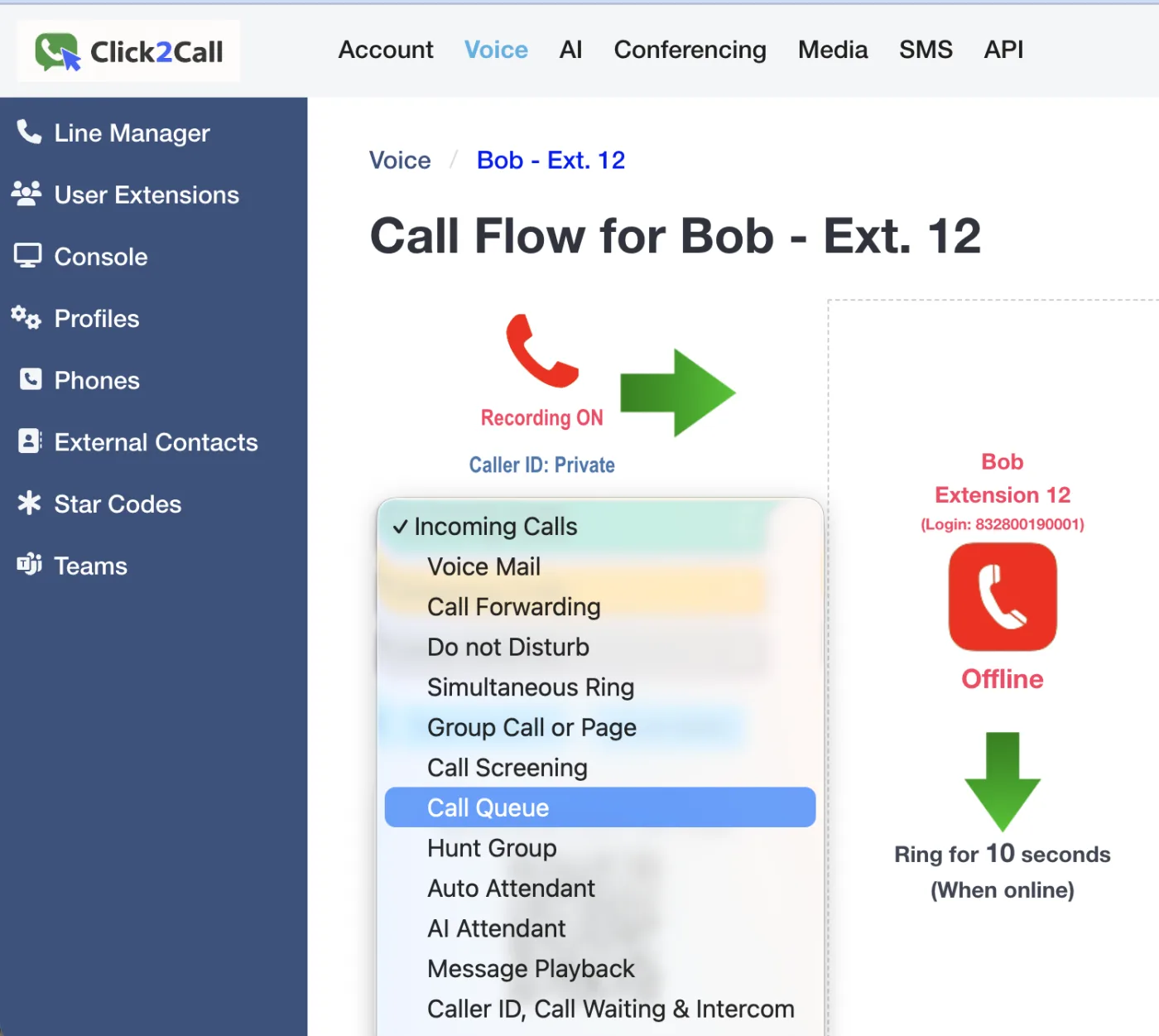
In the portal, open the Voice tab and select the number or extension you want the queue to apply to. That opens the Call Flow screen for that line.
Open the Incoming Calls dropdown and choose Call Queue. This is the same menu that holds Voice Mail, Call Forwarding, Simultaneous Ring, Hunt Group, Auto Attendant and AI Attendant — so the queue becomes what that line does with an incoming call, in place of whichever behaviour was set before.
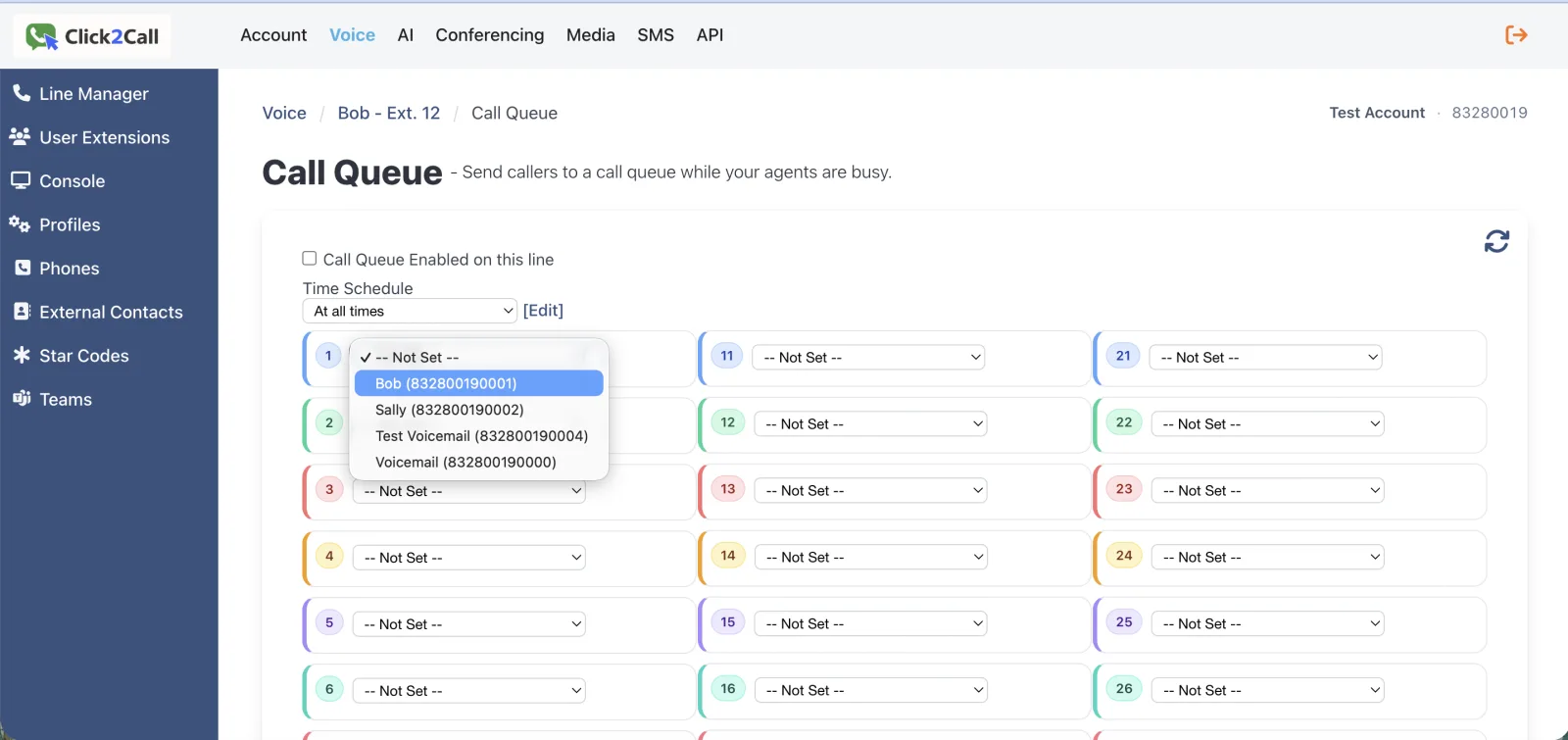
The Call Queue settings open. Tick Call Queue Enabled on this line, then set the Time Schedule below it. Leave it as At all times for a permanently active queue, or pick a schedule so the queue only runs during opening hours.
A queue is set per line, not per account — your main published number can queue while a direct line rings straight through. Because it is chosen from the Incoming Calls menu, enabling a queue replaces the previous incoming-call behaviour on that line rather than running alongside it.
Add your agents
Add each team member who should answer queued calls to the numbered agent list. The numbering is the order agents are tried — which matters for every strategy except Ring All, where everyone rings at once.
Leave unused slots as -- Not Set --. You can change the list at any time without affecting callers already waiting.
The dropdown lists your extensions by name and login, along with any voicemail destinations on the account — so a slot can point at a mailbox as well as a person.
Choose the strategy and ring timers
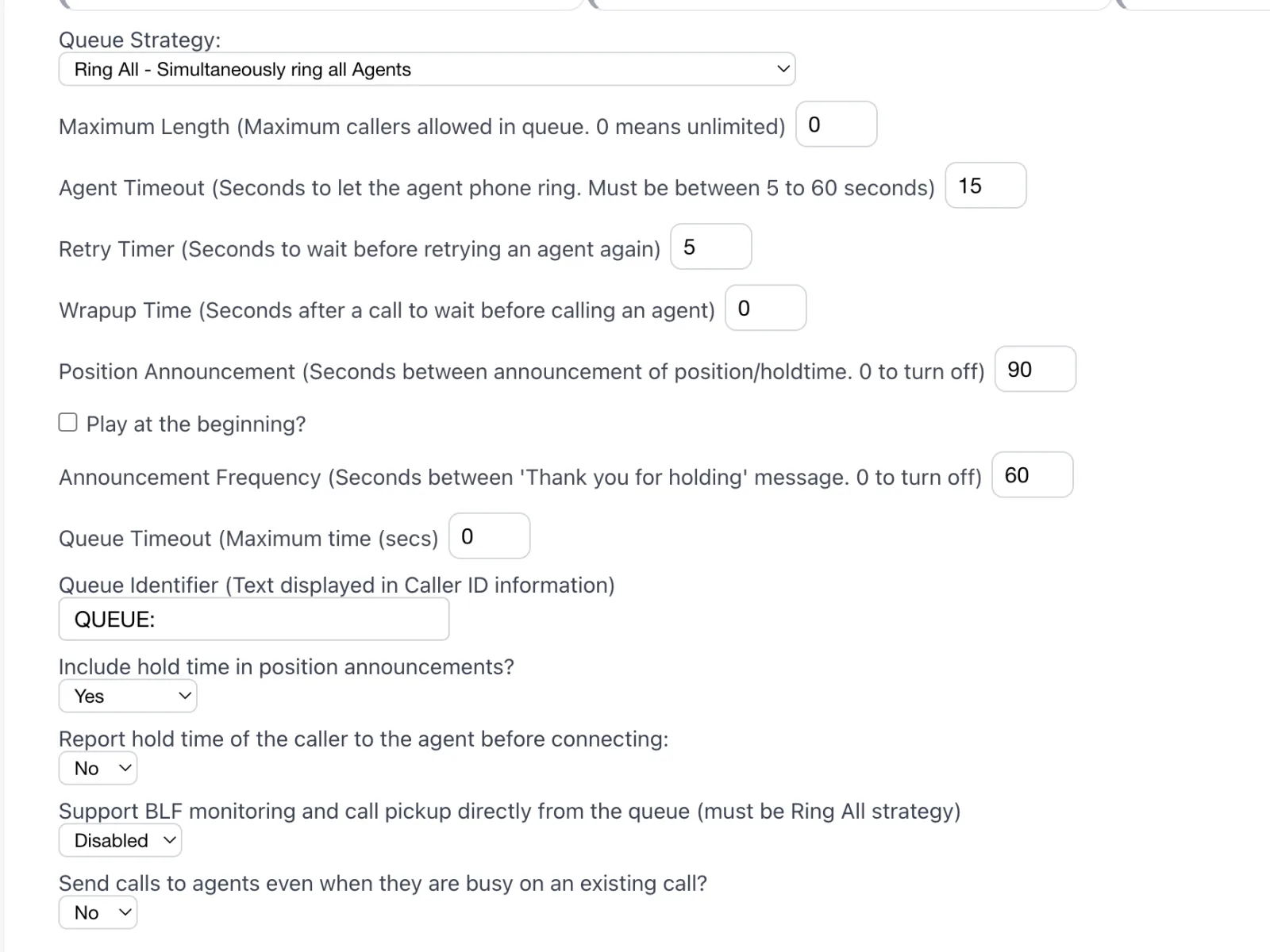
Pick a Queue Strategy. Ring All rings every agent simultaneously and is the usual choice for a small team.
Then set the timers:
- Agent Timeout — how long each agent’s phone rings, between 5 and 60 seconds. 15 is a sensible default; much longer and callers notice the silence.
- Retry Timer — how long before an agent who did not answer is tried again.
- Wrapup Time — a pause after a call before that agent can receive another. Useful if staff need a moment to finish notes.
Two further options sit lower down: whether to send calls to agents even when they are busy on an existing call, and whether to report the caller’s hold time to the agent before connecting them.
Decide what callers hear
This is the part callers actually experience, so it is worth getting right.
- Position Announcement — seconds between telling the caller their place in the queue. Set 0 to turn it off. You can also choose whether it plays at the beginning.
- Include hold time in position announcements — adds an estimated wait to that announcement.
- Announcement Frequency — how often a short “thank you for holding” message plays between position announcements. 0 turns it off.
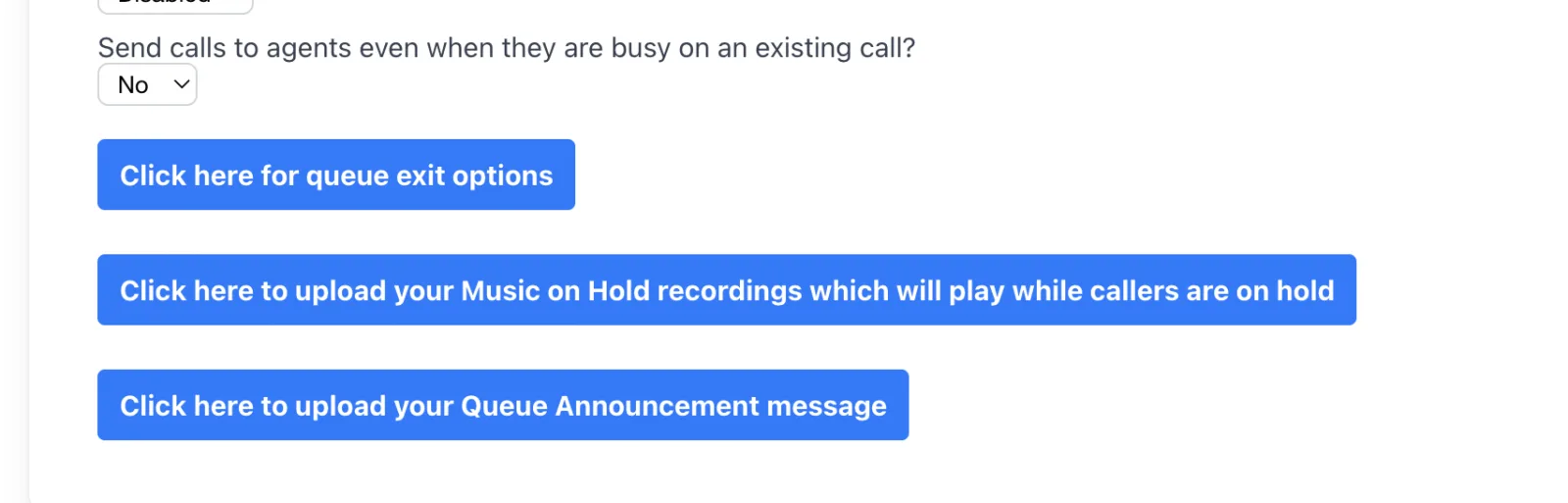
Use the upload buttons at the bottom of the page to add your own Music on Hold and your own Queue Announcement. Both are worth doing — default hold music is the fastest way to sound like everybody else.
Set limits and the exit path
Maximum Length caps how many callers may wait; 0 means unlimited. Queue Timeout caps how long any one caller waits; 0 means no limit.
Use queue exit options to decide where a caller goes when the timeout is reached — voicemail, another number, or another part of your call flow.
Unlimited length with no timeout is rarely the right choice. A caller who waits eight minutes and then hangs up is a worse outcome than one sent to voicemail after ninety seconds.
Give the queue a label, then test it
Set a Queue Identifier — the text shown in the caller ID so staff can see a call came from the queue rather than direct. The default is QUEUE:.
Then test properly: ring the line from an outside phone while the agents are busy or their phones are unregistered. Confirm you hear your announcement and music, that position announcements play at the interval you set, and that the call is delivered as soon as an agent frees up.
Frequently Asked Questions
What is the difference between a call queue and a ring group?
A ring group rings a set of extensions and, if nobody answers, moves the call to the next step. A queue holds the caller until someone is free. Use a ring group to pass a call along quickly; use a queue when calls arrive faster than the team can answer and you would rather callers waited than got voicemail. See Creating a Ring Group.
Why is the BLF option not working?
BLF monitoring and call pickup directly from the queue require the Ring All strategy. With any other strategy selected the option has no effect.
Can a queue run only during business hours?
Yes — set the queue’s Time Schedule. Outside those hours the call follows the rest of your call flow instead, normally an after-hours greeting or voicemail. See Configuring Business Hours.
What happens when the queue is full?
Callers beyond the Maximum Length are not queued and follow the exit path instead. Setting it to 0 makes the queue unlimited.
Do queued calls get recorded and transcribed?
Yes. Once answered, a queued call is recorded, transcribed and summarised like any other. While it is waiting it appears in the live call dashboard, with its wait time.
Related Guides
Still need help?
Email our Australian support team with your account number and what you’re seeing.