
Connecting Synthflow to Your Phone Number
Click2Call has a built-in Synthflow connection profile, including their non-standard inbound port, so putting a Synthflow assistant on an Australian number is one dropdown here and a number import there.
Last reviewed: September 2026
At a glance
- Mandatory Click2Call field
- None — just pick the connection type
- Where Click2Call sends calls
- sip:sipin.synthflow.ai:35681;transport=tcp
- Authentication
- IP allowlist on the Synthflow side — add 103.212.52.19
- Number format
- +E.164, set automatically
- Codecs
- G.711 recommended, Opus supported — both standard on Click2Call
- Code required
- No — the assistant is built in the Synthflow dashboard
- Provider documentation
- Synthflow SIP integration
Connecting Synthflow, Step by Step
Build the assistant in Synthflow
In the Synthflow dashboard, create the assistant that should answer the phone — prompt, voice, actions and knowledge. It is all dashboard configuration.
Import your Click2Call number into Synthflow
Open Phone Numbers and use the Import Phone Number form:
- Number type — Custom.
- Phone number — E.164 format, e.g. +61355551234.
- Friendly name — whatever helps you find it later.
Click2Call cannot present a username and password on an outbound INVITE, so the provider has to trust us by IP allowlist. Allowlist 103.212.52.19 — that is the address our switch sends INVITEs from. If a provider will only accept authenticated INVITEs, the connection has to run the other way round — the provider registers to Click2Call as the number, which is the generic method in connecting an AI voice agent.
Assign the assistant to the number
Attach the assistant to the imported number so inbound calls have somewhere to land.
Create the profile in Click2Call
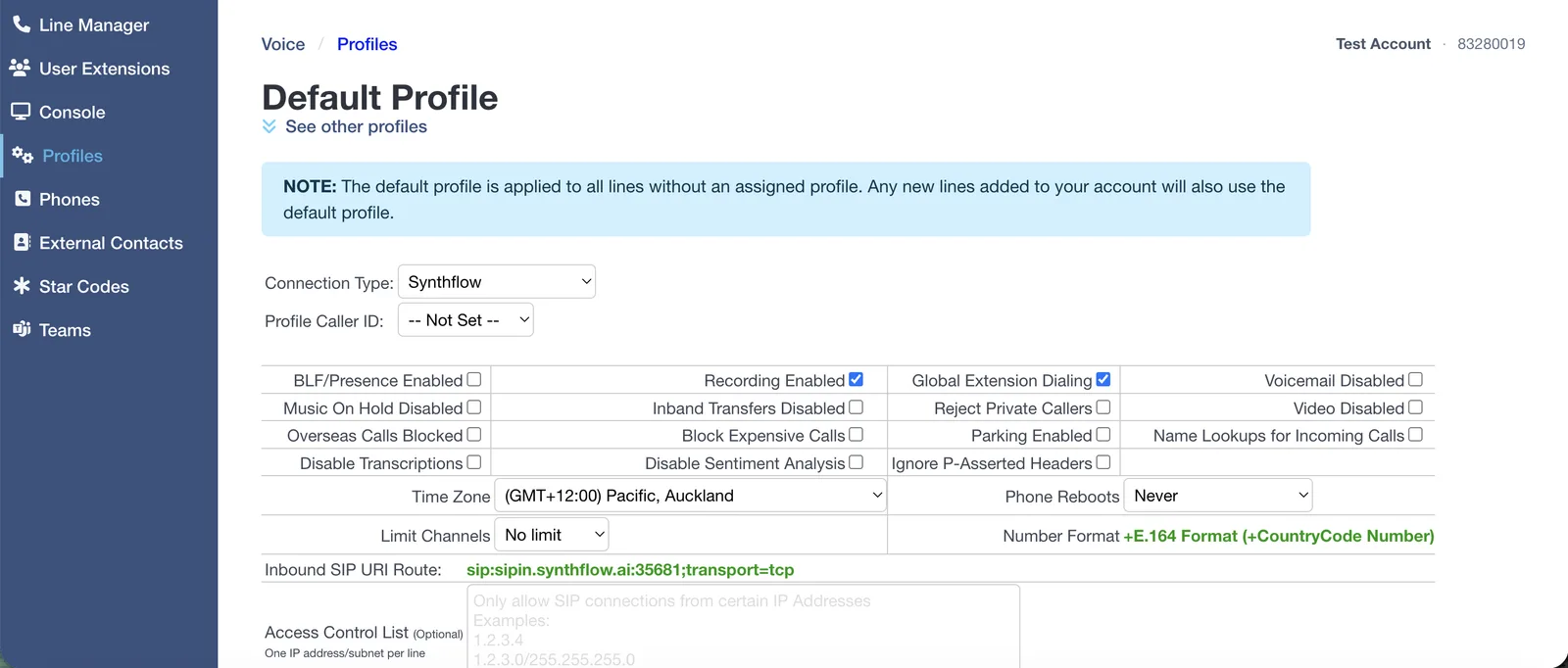
In the Click2Call portal open Voice → Profiles and set Connection Type to Synthflow.
There are no extra fields. The Inbound SIP URI Route line already shows sip:sipin.synthflow.ai:35681;transport=tcp. The port is non-standard, which is normal for Synthflow, and Click2Call handles it for you.
Assign your number, then check the time zone
Open Voice → Line Manager and set the Profile column for your number to the profile you just created.
The Default profile applies to every line with no profile assigned, and new numbers land on it automatically — a number left on Default will ignore everything you just configured. While you are in the profile, set the Time Zone to where the business operates: business hours, after-hours routing and queue schedules all read it.
Test the call
Ring the number from a mobile. The assistant should answer and the call should appear in the Synthflow call log.
Troubleshooting
The provider replies 407 Proxy Authentication Required
The provider is challenging our INVITE for a username and password, which means our signalling address is not on their allowlist. Click2Call cannot answer that challenge on an outbound call, so the fix is always at the provider end — allowlist 103.212.52.19 rather than issuing credentials. While this is happening, callers hear “the number you have called is not available from this service”.
The call reaches Synthflow but nothing answers
The number was not imported in +E.164 format, or no assistant is assigned to it. Check both on the Synthflow Phone Numbers screen.
Synthflow documentation mentions a different host and port
Synthflow publishes several SIP endpoints, including sip.synthflow.ai:32681 for UDP or TCP and sip.synthflow.ai:32682 for TLS. The built-in Click2Call profile uses their dedicated inbound host, sipin.synthflow.ai:35681, so you do not need to choose — leave it as it is.
Calls go to Click2Call voicemail instead
The number is still on the Default profile rather than the provider profile, so the call never leaves for the provider at all. Check the Profile column in Line Manager.
The assistant answers but audio is choppy
Check the codec on the Synthflow side. G.711 is the safest choice and is what Click2Call offers by default; Opus works too but is more sensitive to a poor connection.
Frequently Asked Questions
Do I need to write code?
No. Synthflow is one of the no-code providers. OpenAI and xAI both need a webhook you host.
Why is the port so unusual?
Synthflow runs its inbound SIP service on a high port rather than the usual 5060. The built-in profile already points at it, so there is nothing for you to configure.
Are calls still recorded and transcribed?
Yes, provided Recording Enabled is ticked on the profile. Recording, transcription, summaries and sentiment all work as normal on the Click2Call side, stored in Australia and New Zealand. See AI voice tools.
Can I use my existing business number?
Yes — port it across first, then assign it to the profile. Local and mobile numbers typically port in 5 to 10 business days.
Related Guides
Still need help?
Email our Australian support team with your account number and what you’re seeing. We support the Click2Call side of this connection; questions about the other product go to its vendor.