
Configuring Business Hours
Business hours rules allow your phone system to behave differently depending on the time of day. During business hours, calls can ring your team; outside hours, they can go to voicemail or an after-hours message.
Last reviewed: October 2026
Configuring Business Hours, Step by Step
Navigate to Time Schedules
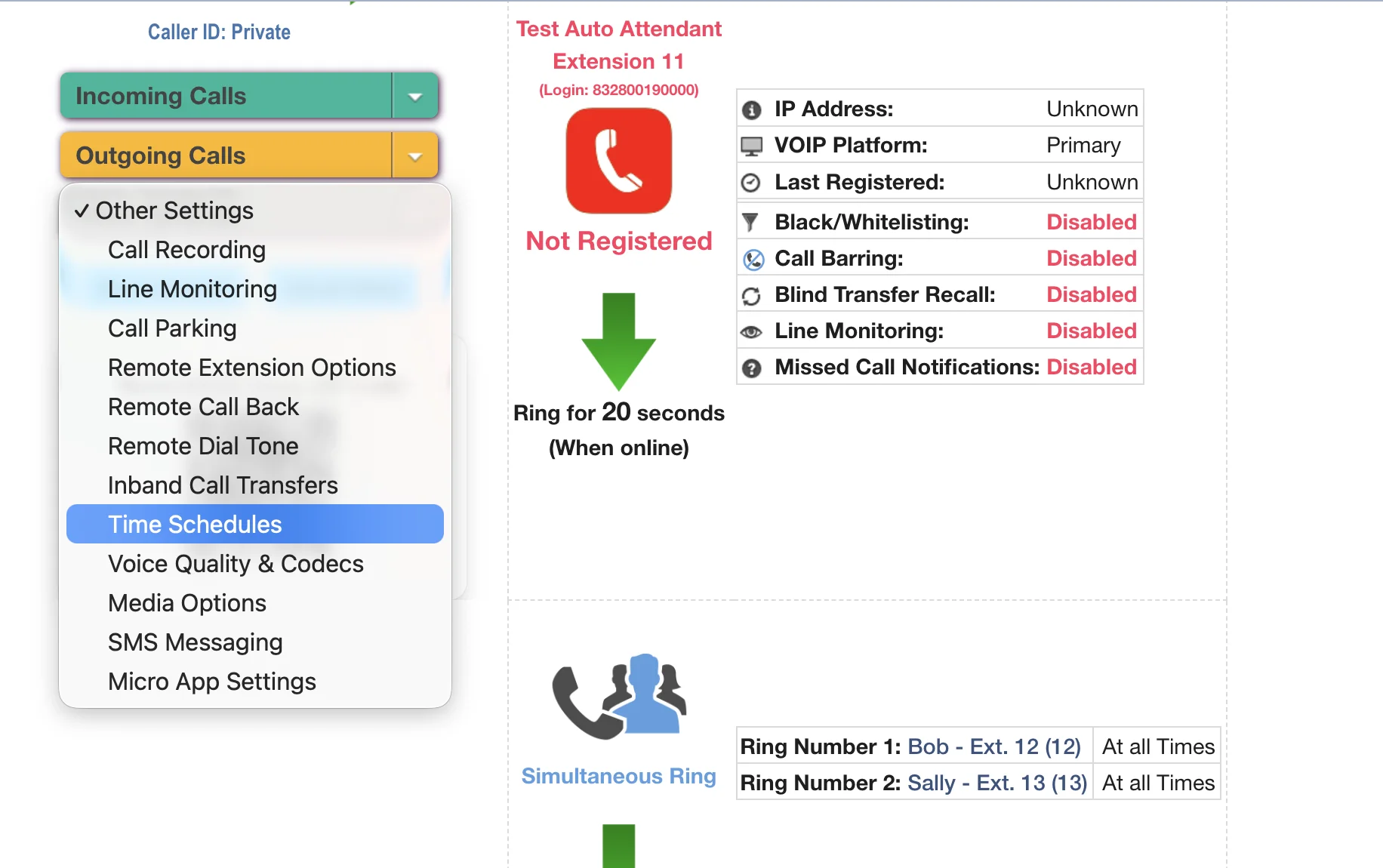
First, log in to the portal and go to the Voice tab. Select the phone number or extension you wish to configure. Then, open the Other Settings dropdown menu and click on Time Schedules.
Configure Your Time Schedules
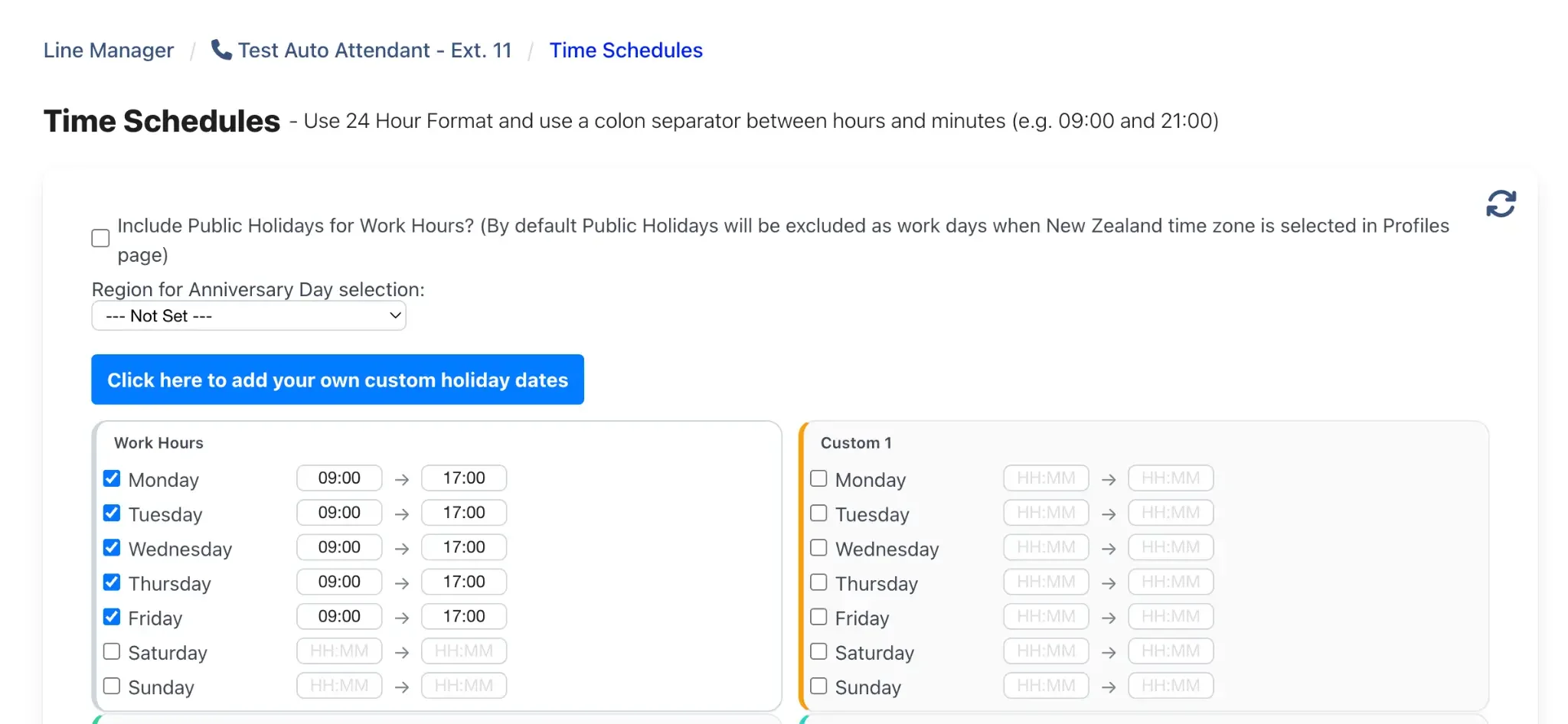
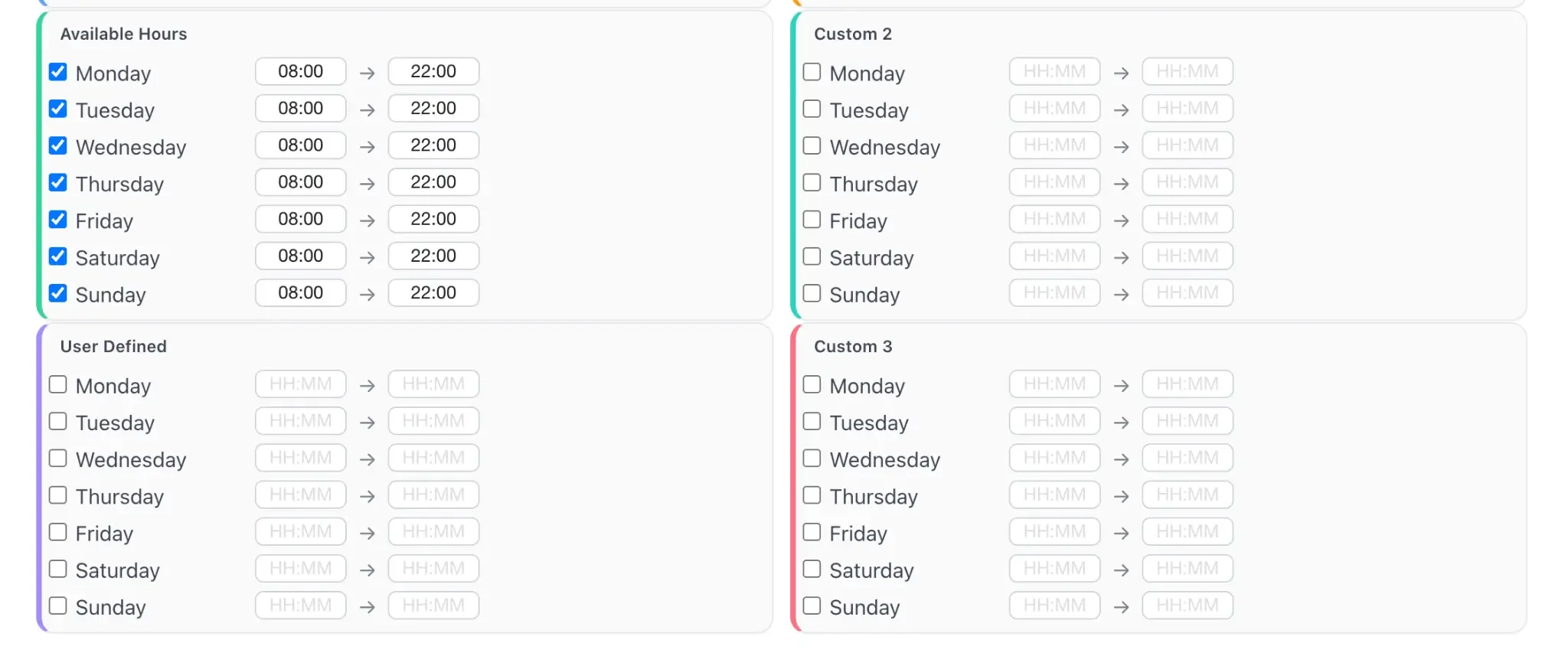
The Time Schedules page provides several pre-named schedules that you can program. Use the 24-hour format (e.g., 09:00 and 17:00). Here’s a breakdown of each schedule type:
Work Hours: This is the most commonly used schedule. Set your standard business operating hours here (e.g., Monday to Friday, 9am to 5pm).
Available Hours: Can be used for extended hours, such as support availability (e.g., 8am to 10pm, 7 days a week).
User Defined: A flexible schedule you can name and use for any specific purpose.
Custom 1, 2, 3: Three additional custom schedules for more complex routing needs, such as different weekend hours or team-specific schedules.
Add Custom Holiday Dates
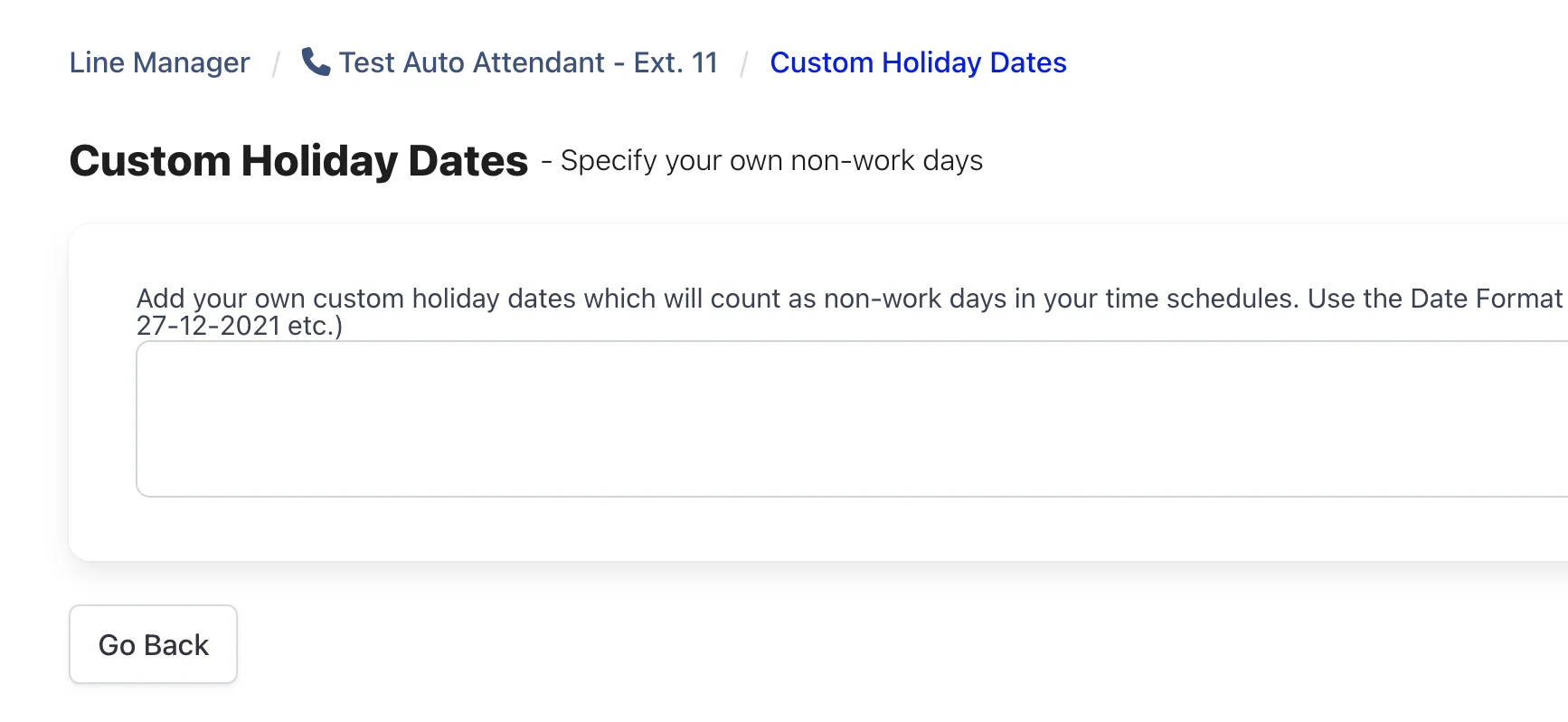
At the top of the page, you can click the blue button to add your own custom holiday dates. These dates will be treated as "outside of hours" in your call flows, ensuring calls are routed correctly on days your business is closed. Enter dates in DD-MM-YYYY format.
Apply Schedules to Your Call Flow
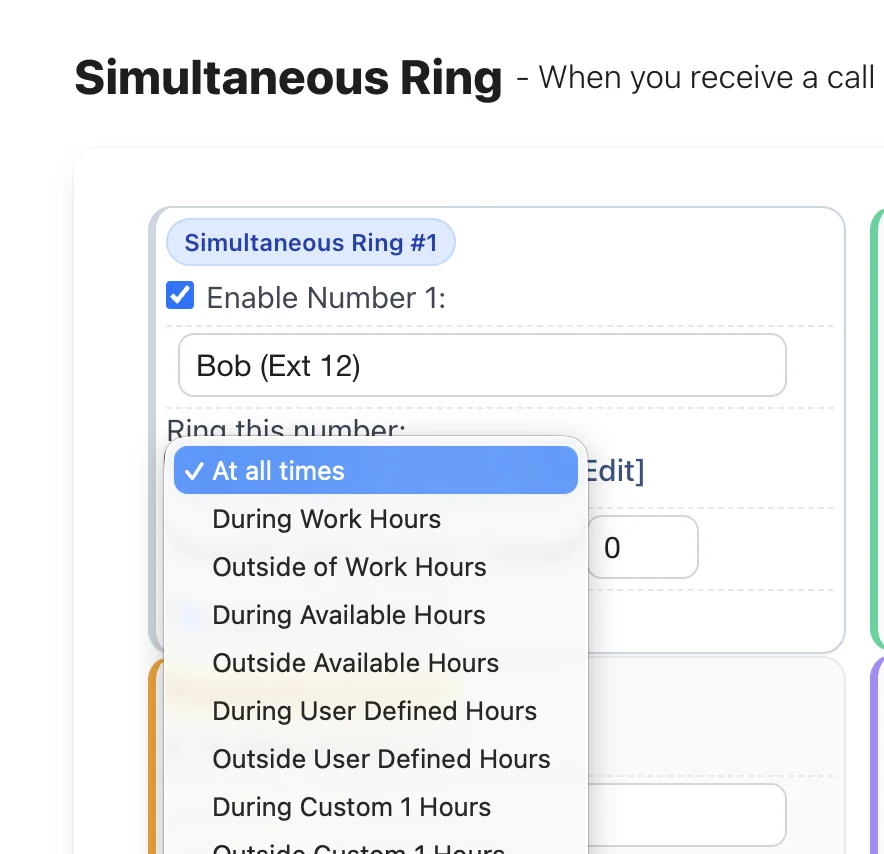
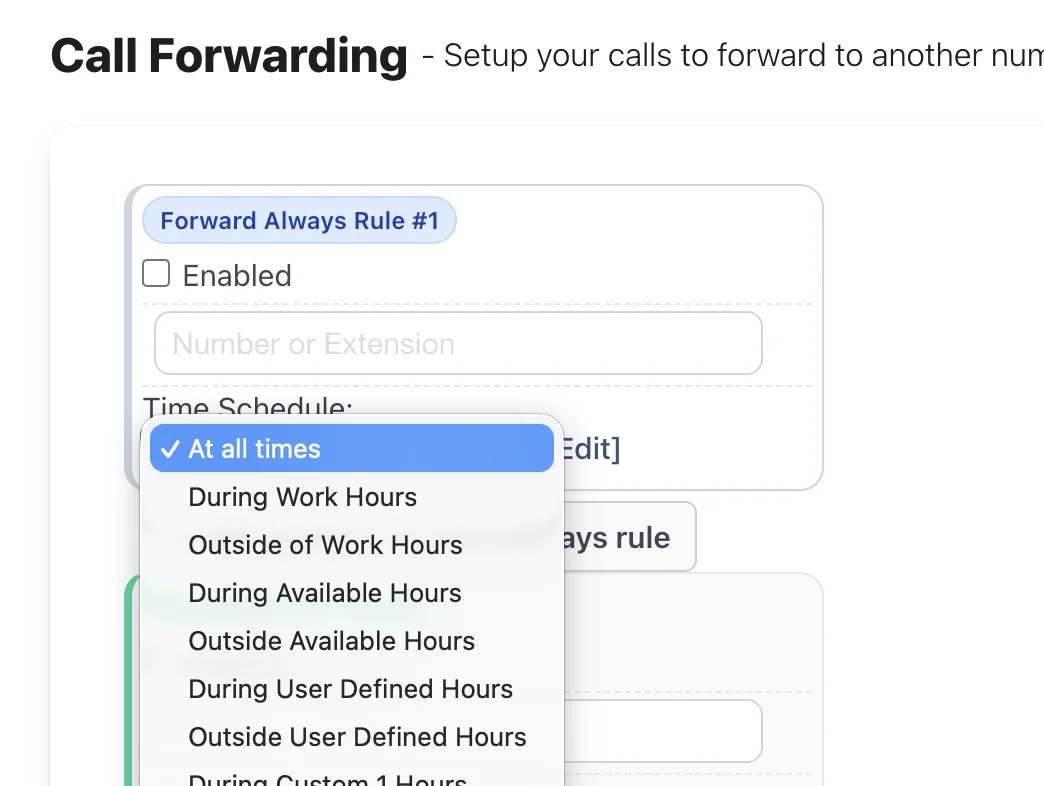
Once your schedules are saved, you can apply them to various call flow features. For example, you can make a Simultaneous Ring group only active 'During Work Hours', or set a Call Forwarding rule to send calls to your mobile 'Outside of Work Hours'. This allows for powerful and automated call routing based on time of day.
Public holidays
Public holidays come from the time zone in the line’s Profile. With a New Zealand time zone, New Zealand public holidays are left out of Work Hours automatically. Australian public holidays are not added automatically, so add them yourself with Click here to add your own custom holiday dates at the top of the Time Schedules page.
- Include Public Holidays for Work Hours? Tick this if you work on public holidays and want them counted as normal work days.
- Region for Anniversary Day applies to New Zealand regional holidays only. Leave it as Not Set in Australia.
Still need help?
Our Australian support team is available to assist you.